> For the complete documentation index, see [llms.txt](https://uidata.gitbook.io/datacentral-knowledge-center/llms.txt). Markdown versions of documentation pages are available by appending `.md` to page URLs; this page is available as [Markdown](https://uidata.gitbook.io/datacentral-knowledge-center/deployments/power-bi-service-principal.md).
# Power BI Service Principal
Creation and Configuration - step by step
Adding your own "*Power BI Service Principal*" provides several benefits. Firstly, it allow for the embedding of reports for audiences without Power BI Pro licenses, such as those using User Pass, Mobile ID, or Azure AD without Pro License. Additionally, the Service Principal can act as a fallback in situations where an Azure AD user does not have access to a workspace, allowing for embedding through the Service Principal. Moreover, numerous [features](/datacentral-knowledge-center/product-guides/features.md) within the system rely on the Service Principal for effective operation.
## Add Power BI Service Principal
To create your own Service Principal, you can follow the steps outlined in the Microsoft documentation. And then to add the Service Principal to DataCentral, please perform all the steps below in the specified order.
You will need one of these following roles within Azure to create an app registration.
* Application Administrator
* Cloud Application Administrator
* Global Administrator
Step-by-step guide:
1. [Azure Portal](#azure-portal)
2. [DataCentral tenant](#datacentral-tenant)
3. [Power BI Service](#power-bi-service)
### **Azure Portal**
Embed Power BI content with Service Principal and an application secret
* [x] [Create a Microsoft Entra app](#create-a-microsoft-entra-app)
* [x] [Enable the Power BI service admin settings](#enable-the-power-bi-service-admin-settings)
#### Create a Microsoft Entra app
In the Azure portal create a Microsoft Entra App
1. Sign in to [Azure portal](https://ms.portal.azure.com/#allservices)
2. Search for and select **App registrations**
App registration
3. Select **"New registration"**
New registration
4. Fill in the required information
* **Name** - Enter a name for your application
* **Supported account types** - Select supported account types
* **Redirect URI** - Leave this empty
5. Select **Register**
6. After you register your app, the **Application (client) ID** is available from the **Overview** tab. Copy and save the **Application (client) ID** for later use.
Application (client) ID
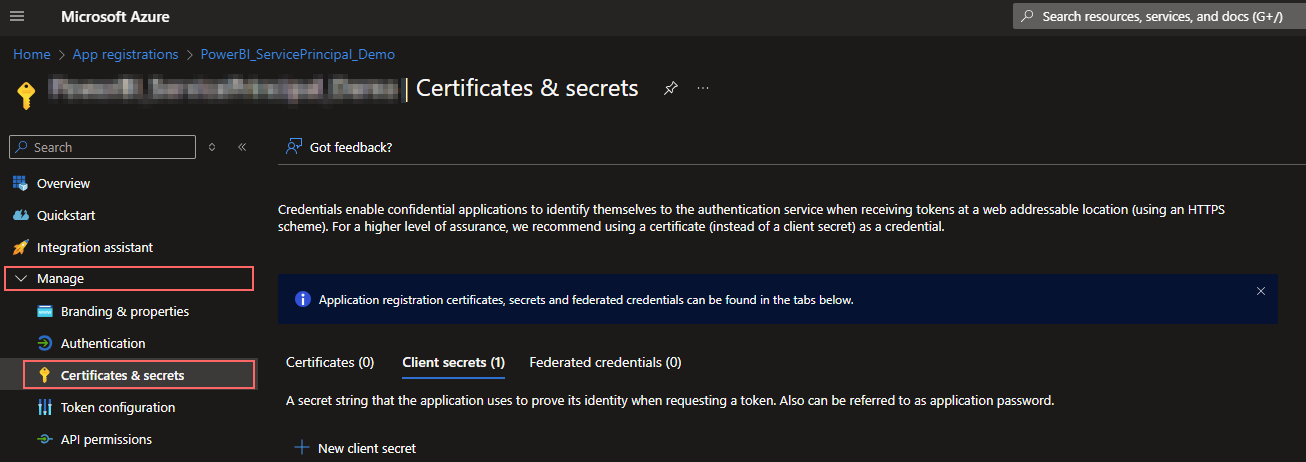
7. Select **Manage** and **Certification & secrets**
Certificated & secrets
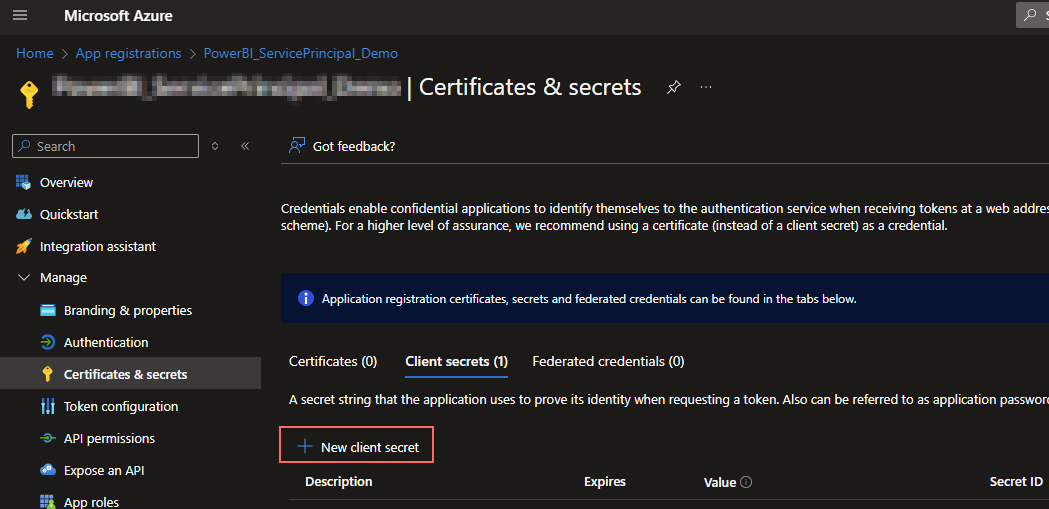
8. Select **New client secret**
New client secret
9. In the **Add a client secret** window, enter a description, specify when you want the client secret to expire (2 years recommended), and select **Add**.
10. Copy and save the client secret value.
Client secret value
#### Enable the Power BI service admin settings
For a Microsoft Entra app to access the Power BI content and APIs, a Power BI admin needs to enable the following settings:
* Embed content in apps
* Allow service principals to use Power BI APIs
*
In the [**Power BI Admin portal**](https://learn.microsoft.com/en-us/power-bi/admin/service-admin-portal), go to **Tenant settings**, and scroll down to **Developer settings**.
* Enable **Embed content in apps** either for the entire organization or for the specific security group you created in Microsoft Entra ID.
Admin Tenant Settings
Alternately use Security Groups, but remember to put the Service Principal(s) into that Security Group.
* Enable **Allow service principals to use Power BI APIs** either for the entire organization or a specified Security Groups as shown in the images below.
***
### Power BI Service
Add your Service Principal as a MEMBER or ADMINISTRATOR to the workspaces you plan to embed within your tenant or use with your tenant's features. The minimum permission level assignable to the Service Principal is 'member'.
Sign in to the [Power BI Environment](https://app.powerbi.com/) you intent to use the Power BI Service Principal.
{% hint style="info" %}
**Important:** Your service principal must have, at a minimum, **'member'** permissions in the workspace to which you are adding it.
{% endhint %}
Find workspace select **Manage access**
Workspace
Add your Power BI Service Principal to the workspace either as **admin** or **member**.
Add member
***
### DataCentral tenant
Authenticate to your tenant.
Under Administration Settings -> Azure Configurations input the values collected from Azure Portal for your Service Principal.
* Directory (tenant) ID
* Application (client) ID
* Client Secret
If you check the box "*Only use Service Principal to manage items and workspaces in tenant*" in Azure Configurations then you will only see workspaces your Service Principal(s) has access to. If the box is unchecked the normal workspace management will occur through your Azure AD user.
Azure Configuration
If you enable "*Only use Service Principal to manage items and workspaces in tenant*" then you can tres your Service Principal. Navigate to **Power BI Items** and select **Manage workspaces.**
Power BI Items
If steps followed correctly you should now be able to embed report from workspace(s) to your tenant.